Four connected worlds
Complete the starting Homeworld and explore three destinations, each with nine visual planet stages.
ARTILLIS
Turn your everyday steps into a journey across illustrated worlds. Grow planets, build rockets and watch your progress take shape on your Garmin.
View OrbitQuest on Garmin Connect IQ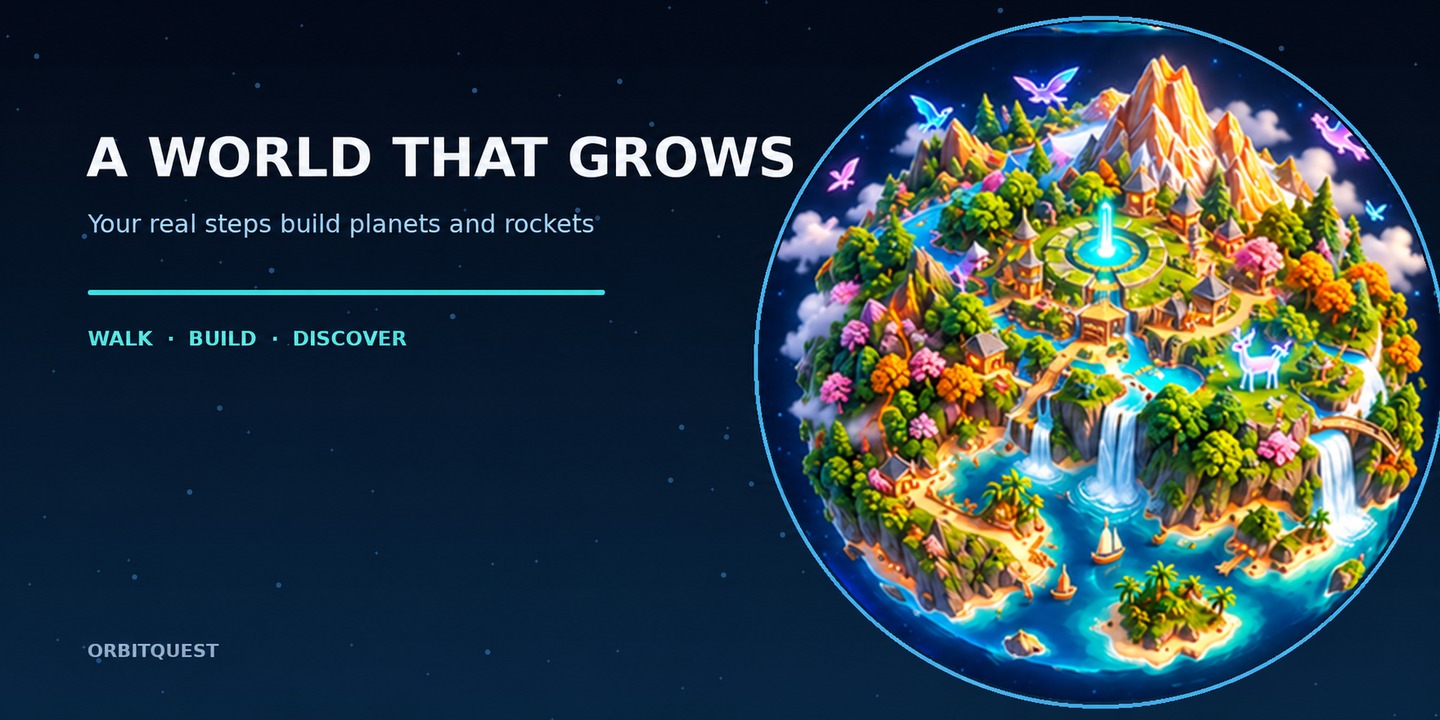
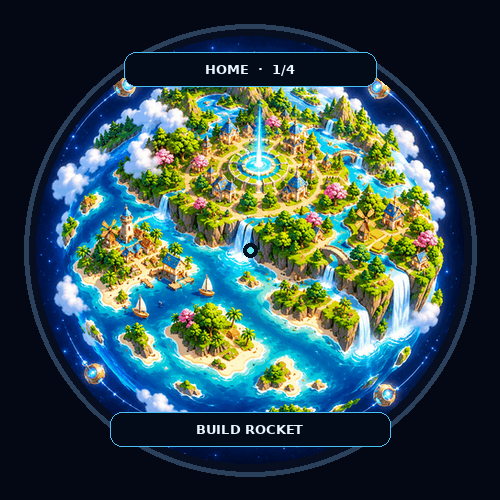
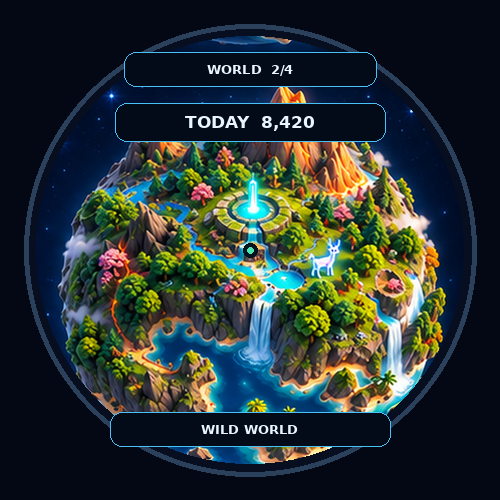
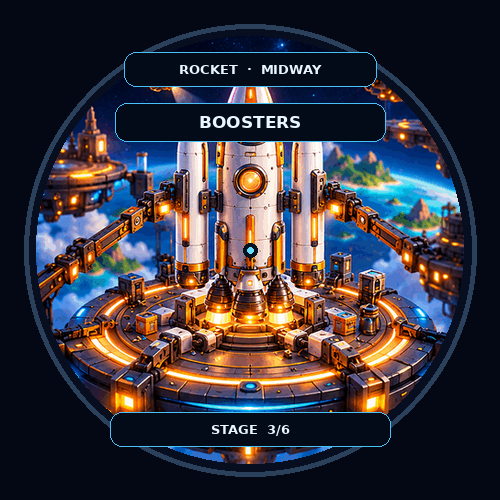
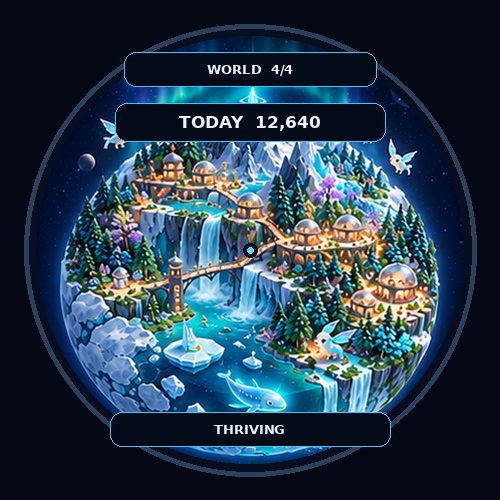
OrbitQuest is a visual step-progress adventure. Begin on your Homeworld, build a rocket and travel through Verdant Reach, Emberfall and Frostlight. Each destination grows through a series of illustrated stages as your steps accumulate, while rocket artwork develops during each journey between worlds.
A bottom progress bar and percentage show how close you are to the next planet level. The rocket workshop now shows progress towards its next construction stage too. Exact step targets remain hidden.
Changing encouragement messages accompany planet stages. Rocket journeys include a countdown, ignition, liftoff and an arrival welcome.
Your progress is saved on the watch. On button watches, Back returns from inner screens; press Back from the main planet or completed-map screen to exit. On touchscreen watches, tap EXIT in the upper-right corner to close the app.
A planned update will let you replay the full four-world journey for optional watch-face metrics, earning one per repeat journey until all four are unlocked. These rewards are a future feature and are not available in v1.0.3. The companion face already mirrors your current world and planet or rocket stage.
Complete the starting Homeworld and explore three destinations, each with nine visual planet stages.
Your steps also advance rocket construction. The ship gains new parts as you prepare for the next world.
OrbitQuest uses Garmin’s recorded daily step history. Progress is saved on the watch and continues independently of Steps in the Last Pro.
If Steps in the Last Pro is installed, OrbitQuest can award a one-time Signal Cache bonus. The main journey does not require it.
OrbitQuest Face can mirror your active world and planet or rocket stage. See the companion face.
Settings let you show or hide on-screen labels and progress information. A glance can show today’s step total.
The companion OrbitQuest Face displays your current journey as an analogue watch face. Install both products from Connect IQ, open OrbitQuest to publish its initial progress, and then select OrbitQuest Face as your active watch face.
Check the Garmin Connect IQ Store listing for the current compatible-device list and watch-specific details. Need help? Email artillis@artillis.com.
SETUP & INSTRUCTIONS
Device-recorded steps can advance progress while the app is closed through Garmin’s background step events. Steps brought in from a sync are picked up the next time OrbitQuest opens. Garmin may delay background work to save resources, so opening the app also checks for updates.
Use Connect IQ settings to control whether the app shows labels, step totals, progress bars and caption panels. These settings keep the artwork visible while letting you choose how much supporting information appears.