Mirrors your current progress
Shows the current world and planet stage, or the rocket-construction stage while you are preparing for the next destination.
ARTILLIS
Take your OrbitQuest journey onto your watch face. A clean analogue clock sits over the world you are growing, with rocket hands inspired by the game’s ship designs.
View OrbitQuest Face on Garmin Connect IQ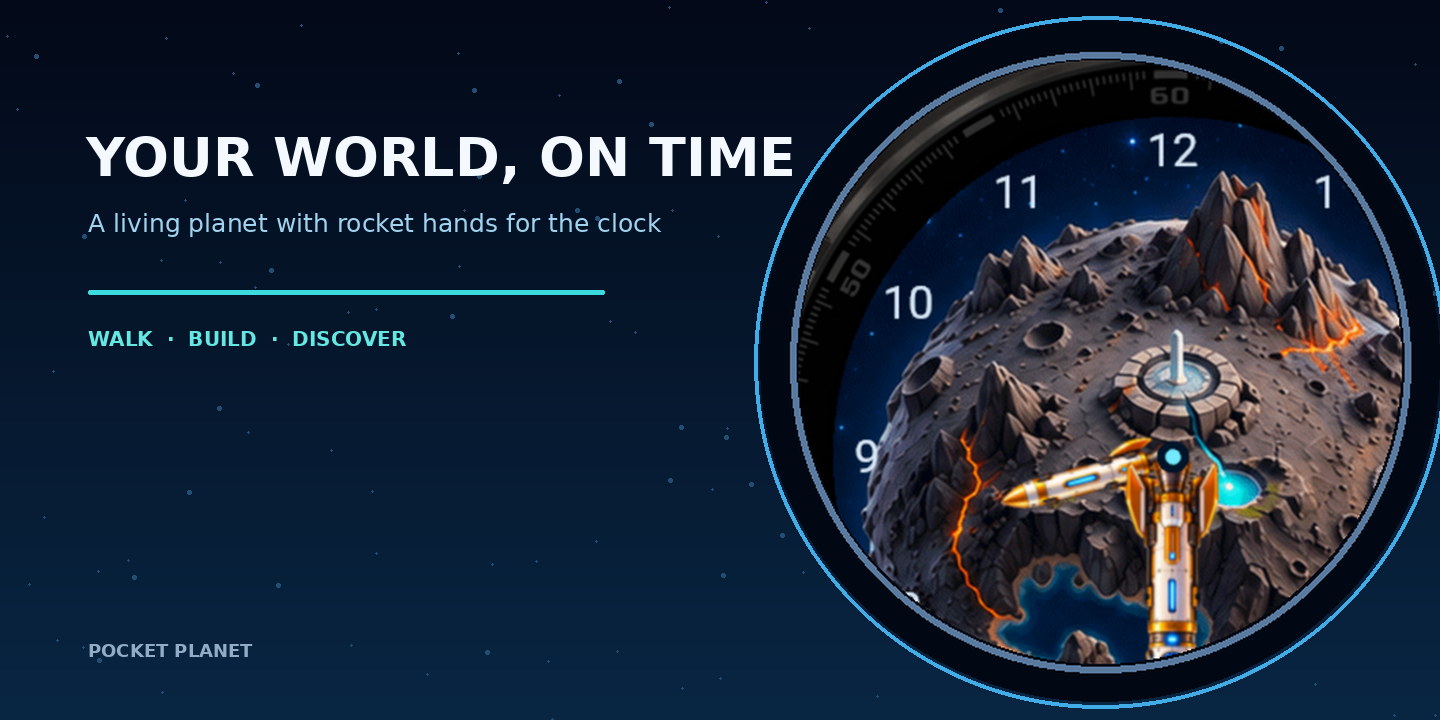
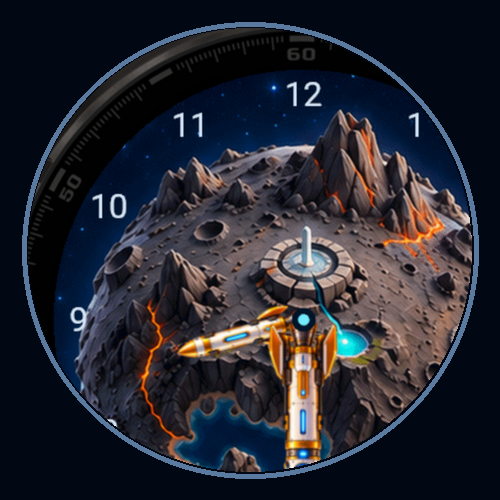
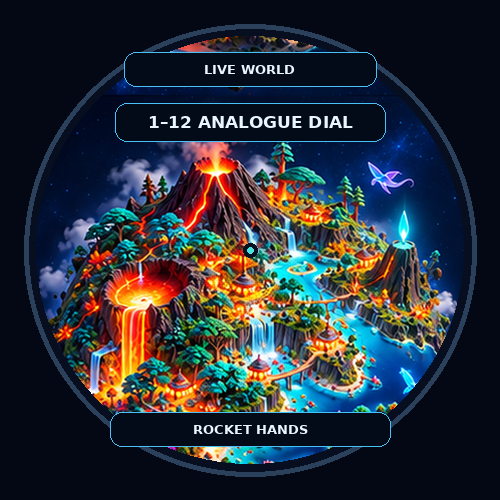
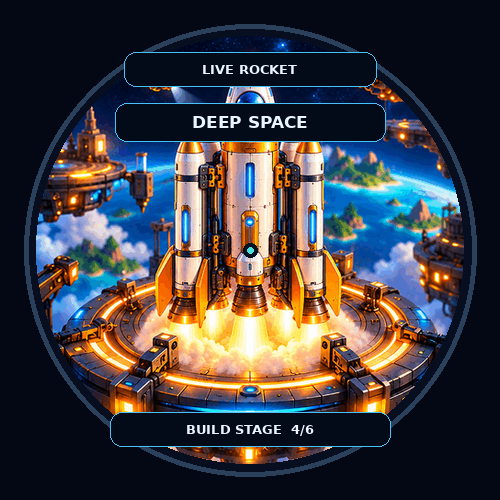
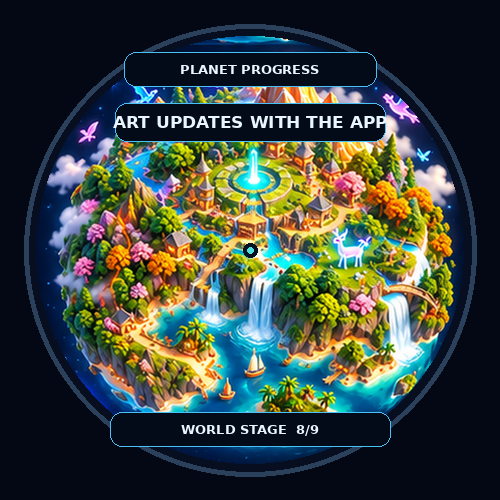
OrbitQuest Face is the companion watch face for the OrbitQuest step-progression app. It places an analogue clock over the active planet or rocket artwork and updates to reflect the saved game phase and stage.
Choose the colour of the 1–12 dial numerals through Connect IQ settings, including black. The rocket hands and current planet or rocket artwork keep your journey visible as a watch face.
The repeat-journey challenge to earn four optional metrics is planned for a future update. Those reward metrics are not part of the current release.
Shows the current world and planet stage, or the rocket-construction stage while you are preparing for the next destination.
The main rocket design forms the minute hand, with a smaller companion rocket as the hour hand.
Small 1–12 numerals help orient the dial while keeping the world artwork as the focus.
Use the watch-face settings to select from nine numeral colours, including black.
The face receives its world and stage from OrbitQuest. Install the game app as well, then open it once so it can publish its saved state. Until the app provides progress, the face uses the Homeworld artwork.
View the OrbitQuest appCheck the Garmin Connect IQ Store listing for the current compatible-device list and watch-specific details. Need help? Email artillis@artillis.com.
SETUP & INSTRUCTIONS
Open the watch-face settings from Garmin Connect IQ or the watch’s face settings. Select the numeral colour that gives you the clearest contrast with your preferred background.